
The Fear Everyone Has When Changing Phones
A new phone is exciting — until you open WhatsApp on it and stare at an empty chat list. Years of conversations, family photos, voice notes from parents, business messages and important documents can all vanish in one careless phone change. The good news: WhatsApp has a complete backup system built in, and on Android it works through Google Drive, free of charge.
The bad news is that most people only discover how it works after something has gone wrong: the backup was never turned on, it was saved in a different Google account, or it did not include videos. This guide takes you through the whole process slowly — backing up properly on the old phone first, then restoring everything on the new one — so you lose nothing at all.
Before You Start: Four Things That Must Match
WhatsApp restore only works when these four things line up. Check them now and the rest becomes easy:
- Same phone number. The backup is tied to your number. If you are also changing your SIM number, first use WhatsApp’s Change number feature on the old phone (Settings > tap your profile > tap the number) before backing up.
- Same Google account. The backup sits in one specific Google account’s Drive. On the old phone, note exactly which account WhatsApp shows (see Step 2 below). On the new phone, add that same account in Settings > Accounts before opening WhatsApp.
- Enough free space. Restoring needs roughly double the backup size free on the new phone temporarily. A 4 GB backup wants about 8 GB free.
- Good Wi-Fi. Backups with videos can be several gigabytes. Mobile data backups eat packages and often pause midway.
Part 1: Back Up on the Old Phone (Do This First)
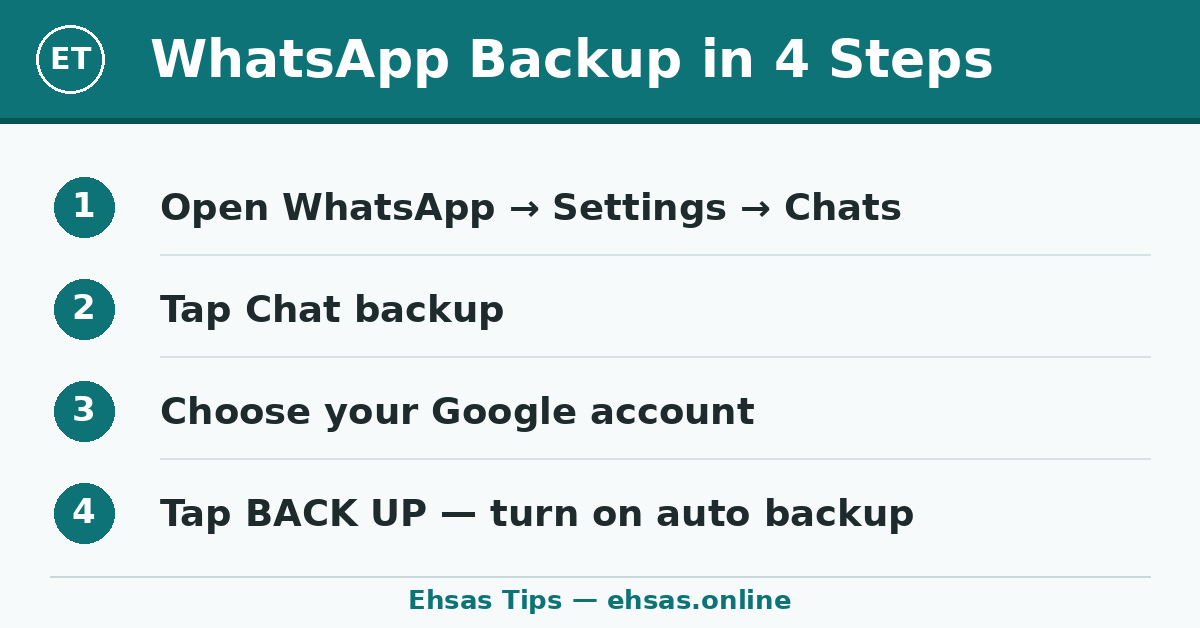
Step 1. Open WhatsApp and go to Settings > Chats > Chat backup.
Step 2. Under Google account, select the account the backup should live in — ideally your main, permanent Google account, not a temporary one you might abandon. If no account is shown, tap and add it now.
Step 3. Set Back up to Google Drive to Daily (or Weekly if your data situation is tight). Daily automatic backup means you never again depend on remembering.
Step 4. Turn on Include videos only if you have the Drive space and Wi-Fi for it. Videos are what make backups huge. If storage is a problem, leave videos off — chats, photos and voice notes are still backed up — and copy important videos to a computer separately.
Step 5. Decide on End-to-end encrypted backup. Turning it on protects your backup with a password or 64-digit key that even WhatsApp and Google cannot read. It is more secure, but if you forget that password/key, nobody can restore the backup — including you. Only enable it if you will store the password safely somewhere outside the phone.
Step 6. Tap Back up and wait until it shows 100% and a fresh time under “Last backup”. Do not change phones until this finishes. The screen shows two parts — a local backup and the Google Drive upload; the upload completing is what matters.
Part 2: Restore on the New Phone
Step 1. Before opening WhatsApp on the new phone, add the same Google account in the phone’s Settings > Accounts, and connect to Wi-Fi.
Step 2. Install WhatsApp from the Play Store and open it. Enter the same phone number and verify with the SMS code.
Step 3. WhatsApp will search and announce that a backup was found, showing its date and size. Tap Restore. If this screen never appears, the account or number does not match the backup — skip ahead to the troubleshooting section instead of pressing “Skip”, because skipping and later reinstalling incorrectly can cost you the chance.
Step 4. Wait for messages to restore first, then let media (photos, videos, documents) download in the background. Your chats become usable quickly, but old photos may take a while to fill in — this is normal, leave the phone on Wi-Fi and charging.
Step 5. Open a few old chats and confirm photos open, voice notes play and documents download. Only after this check should you reset or sell the old phone.
Moving to a second phone instead of a replacement? You may not need a restore at all — see WhatsApp on two phones with the same number.
The Local Backup: Your Secret Safety Net
Android WhatsApp also keeps a local backup on the phone itself (in internal storage, WhatsApp/Databases), usually made every night around 2 AM. If the Drive restore fails but you still have the old phone, all is not lost: copy the whole WhatsApp folder from the old phone to a computer, then onto the new phone before installing WhatsApp — on setup, WhatsApp can restore from that local copy. This method is fussier about folder placement on newer Android versions, so treat it as plan B, but knowing it exists has saved many people’s histories.
If a backup is not updated for a long time, Google may delete it – so keep automatic backups on.
Chats are only half the story — back up your phone photos for free as well so a lost phone loses nothing.
Troubleshooting: Backup Not Found or Restore Stuck
- “No backup found”: Almost always the Google account differs. On the new phone, open the Google Drive app with the same account and check Drive > Backups — if the WhatsApp backup is visible there, the issue is that WhatsApp is signed into a different account; fix the account in the phone settings and in WhatsApp’s backup screen.
- Restore stuck at a percentage for hours: Switch to a stronger Wi-Fi, keep the phone charging, free more storage, and be patient with large media. Do not uninstall during a restore.
- Backup button fails or stays at 0%: Check the phone’s date and time are set automatically, update WhatsApp, and confirm Drive has free space (Drive storage is shared with Gmail and Photos — a full 15 GB account cannot accept a backup).
- Changed number already: If you still have the old phone working, do the Change number process there and back up again. If not, restore using the old number first if the SIM still works, then change the number inside WhatsApp afterwards.
If a full backup will not fit, first free up space without deleting your photos and try again.
Quick Summary
- Old phone: Settings > Chats > Chat backup — right Google account, daily schedule, tap Back up, wait for 100%.
- New phone: add the same Google account first, install WhatsApp, verify the same number, tap Restore.
- Check old chats and media before wiping the old phone.
- Keep backups automatic so the next phone change is boring.
Frequently Asked Questions
Does WhatsApp backup include photos and voice notes?
Yes — chats, photos, voice notes and documents are included. Videos are included only if you turn on “Include videos”.
I have a new number and a new phone. What order do I follow?
On the old phone: change the number inside WhatsApp first, then back up, then move to the new phone and register with the new number.
Can I restore an Android WhatsApp backup on an iPhone?
Not from Google Drive — iPhone uses iCloud. WhatsApp offers a separate “Move chats” transfer option during iPhone setup; a simple Drive restore will not work.
How big is a typical WhatsApp backup?
Without videos, most people are between a few hundred MB and 2 GB. With years of videos, 5–10 GB is common — check the size shown on the backup screen before you start.
Pair this with our guides to backing up your phone photos for free and using WhatsApp on two phones — both here on Ehsas Tips.

Sharjeel Rana manages Ehsas Tips and writes practical mobile guides in simple language.