
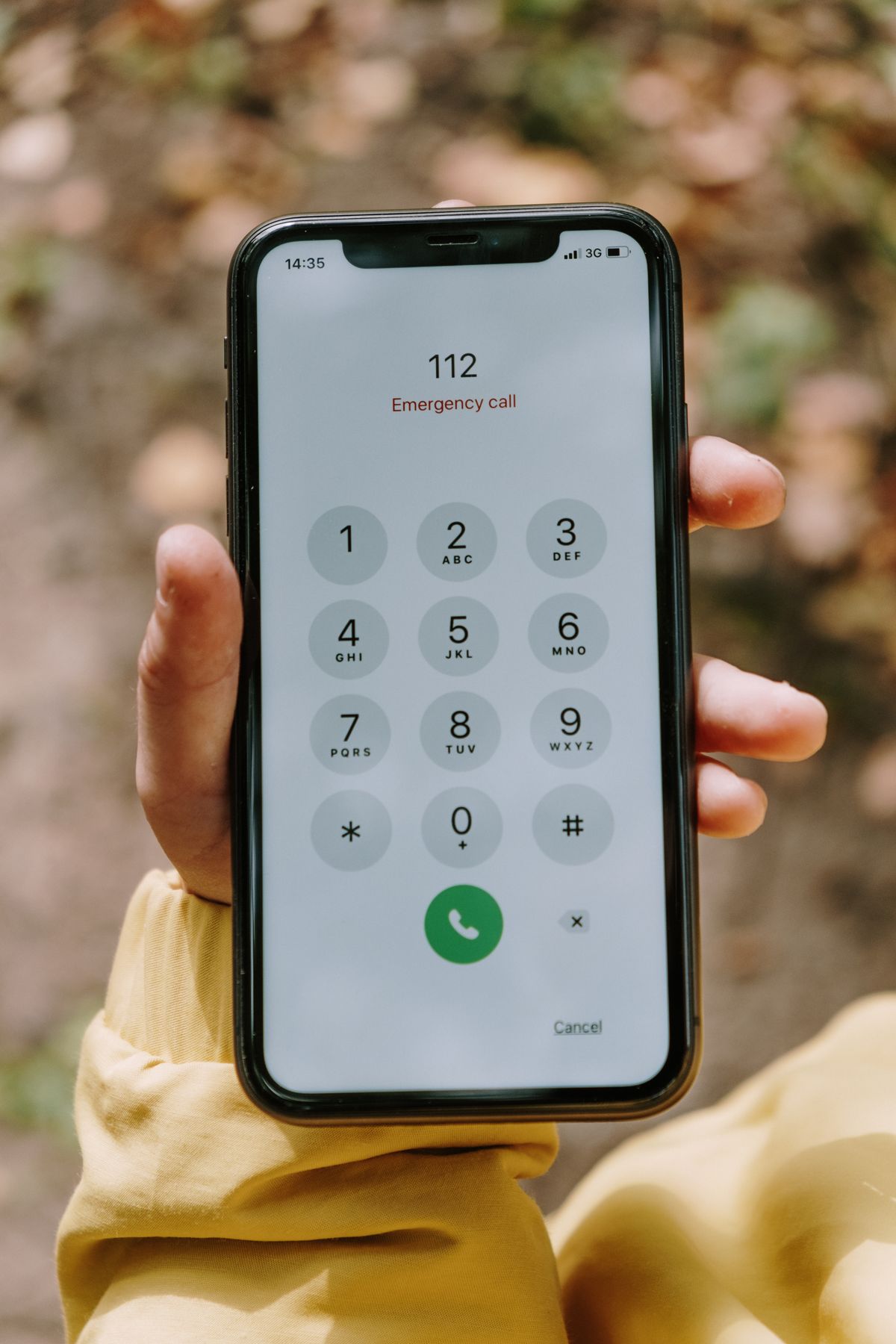
The Two Minutes That Matter Most
Imagine an ordinary day in Pakistan — travelling on the motorway, crossing a busy road in Lahore or Karachi, or at work — and suddenly something goes wrong: an accident, a fainting spell, or a fall. You may not be able to unlock your phone or even speak clearly, and the people around you will not know who to call, what medicines you take, or whether you have an allergy.
Your Android phone already has features made for this moment. Emergency SOS can call for help and alert your family with a few presses of the power button. Medical information can show your blood group, allergies, medicines, and emergency contacts on the lock screen, without unlocking the phone. Setup takes less than ten minutes, costs nothing, and you only do it once.
What Emergency SOS Actually Does
Emergency SOS is a shortcut for the worst moments. On most Android phones, pressing the power button quickly five times — on some models three times — starts an emergency action. Depending on your settings, the phone can call the emergency number, sound a loud alarm, start a countdown before calling, and send a message with your location to your emergency contacts.
That location message matters a lot in Pakistan. On a highway or in an unfamiliar town, your family receives a map pin instead of a confused call. Some Samsung phones can also attach photos or a short sound recording from the scene, if you turn those options on.
Set SOS up carefully, learn how to cancel a false trigger, and test only the settings screens — never place a fake emergency call.
Step 1: Turn On Emergency SOS on Android
Menu names differ a little between Samsung, Xiaomi, Infinix, Tecno, Vivo, and Google Pixel phones, but the path is always inside Settings. Use the search bar at the top of Settings and type “SOS” or “Emergency” if you cannot find the menu.
On most phones, follow these steps:
- Open Settings and go to Safety and emergency. On Samsung phones, look under Safety and emergency or Advanced features > Send SOS messages, depending on the model and software version.
- Open Emergency SOS and turn it on.
- Choose how it starts — usually by pressing the power button five times quickly.
- Turn on the option to call the emergency number automatically, or keep the swipe-to-call step if you worry about accidental triggers.
- Set the countdown. A short countdown of five to ten seconds gives you time to cancel a mistake while still calling quickly in a real emergency.
On Pixel phones, the same options live inside the Personal Safety app. On Xiaomi and other brands, search Settings for “Emergency SOS” and follow the prompts to pick emergency contacts at the same time.
Remember Pakistan’s main numbers: 15 for Police, 1122 for Rescue 1122 in Punjab, Khyber Pakhtunkhwa, and several other areas, and 115 for Edhi ambulance in many cities. Save the number that works in your city if your phone lets you choose it.
Complete the protection with the best Android privacy and security settings, including Find My Device.
Step 2: Add Emergency Contacts Who Will Actually Answer
An SOS alert only helps if it reaches the right person. Add two or three contacts who keep their phone nearby, answer quickly, and live close or can coordinate help — for example, one family member at home, one relative or friend in the same city, and, if you travel for work, one colleague who knows your routes. Tell them you added them, so the alert is not ignored as spam.
To add contacts, open Settings > Safety and emergency > Emergency contacts, or use the Personal Safety app on Pixel. Pick contacts from your address book instead of typing numbers by hand.
You can also label these contacts “ICE” — In Case of Emergency — for example “ICE Abbu”. Rescue and hospital staff often look for ICE entries.
Step 3: Add Your Medical Information
Medical information is the second half of this setup, and for doctors it can be the most valuable part. If you reach a hospital unconscious or confused, staff need facts, not guesses — and your locked phone can give them those facts.
Open Settings > Safety and emergency > Medical information, or the Medical section of the Personal Safety app, and fill in only what is true and current:
- Name and blood group: Add your full name and blood group only if you are certain of it. A wrong group is worse than an empty field; confirm it from a lab report or donor card.
- Allergies: List medicines or foods that cause a reaction, written clearly.
- Current medicines: Add daily medicines, for example for blood pressure, diabetes, asthma, or heart problems, with the dose if you know it.
- Medical conditions: Note long-term conditions such as diabetes, epilepsy, asthma, or a heart condition.
- Address and notes: Add your home city and, if useful, your usual hospital or doctor.
Update this list whenever a medicine changes. Outdated information can mislead the people trying to help you.
While you are preparing for emergencies, also back up your phone photos for free — a lost phone should not mean lost memories.
Step 4: Make Sure Help Can See It From the Lock Screen
Information hidden behind your PIN helps nobody in an emergency. Check that your medical details and emergency contacts are visible from the lock screen without unlocking.
Lock your phone, wake the screen, and tap Emergency near the PIN pad. On many phones this shows your medical details and lets a helper call your emergency contacts directly — without opening your messages, photos, or other private data. Try it now, while everything is calm. If details do not appear, go back to the medical settings and turn on “Show on Lock screen” or the option to show information when locked.
Never put bank details, passwords, or your identity card number in these fields. Medical basics and two family numbers are enough.
Step 5: Set Up SOS for Parents and Elderly Family Members
Do this setup on your parents’ and grandparents’ phones too. Older family members are the most likely to need help quickly and the least likely to explore Settings alone.
Sit with them for ten minutes, add your number as the first contact, fill in their medicines carefully, and practise together: how to press the power button, what the countdown looks like, and how to cancel a mistake. One calm practice at home removes the fear of using it on a bad day. For a parent who goes alone to the bazaar, clinic, or mosque, keep location on so an SOS message can include where they are.
And teach the family the lost-phone routine too — our lost phone guide lists the exact order: call, locate, block the SIM, change passwords, report the IMEI.
Avoiding Accidental SOS Calls
A common worry is triggering SOS in a pocket, or a child playing with the power button. Keep the countdown on and, if your phone offers a choice, pick the five-press method, which is harder to trigger by accident.
If an accidental call does connect, do not hang up silently. Stay on the line, say clearly that it was a mistake and you are safe. Operators treat a silent cut-off as a possible real emergency and may call back.
Quick Summary: Your Emergency Setup Checklist
Complete this checklist once, then review it every six months:
- Turn on Emergency SOS and set a five-to-ten-second countdown.
- Confirm the correct emergency number for your city, such as 15, 1122, or 115.
- Add two or three emergency contacts and tell them you added them.
- Fill in blood group (only if certain), allergies, regular medicines, and conditions.
- Turn on “show on lock screen” and test it from the Emergency button on your lock screen.
- Repeat the same setup on your parents’ phones and practise cancelling together.
- Update the medical list whenever a medicine or condition changes.
Frequently Asked Questions
Does Emergency SOS work without internet or mobile balance?
Yes, the emergency call itself works without balance, and emergency numbers can be called even without a data package. The location message to your contacts needs mobile signal and may need data or SMS, so keep location on and do not rely on Wi-Fi alone when travelling.
Can someone misuse my medical information on the lock screen?
They can only see the basic details you chose to add and call your emergency contacts. They cannot unlock the phone or open your apps through this screen. Add only what helps in an emergency, and never add financial details or passwords.
How many times do I press the power button?
On most Android phones it is five quick presses; some Samsung models use three presses for SOS messages or let you choose. Check your own phone’s Emergency SOS screen — it states the exact number — and practise reaching that screen without placing a call.
What if my phone does not have a Safety and emergency menu?
Your emergency contacts and medical information can be shown on your lock screen, so rescuers can see thm and call your family without unlocking your phone. To set this up, open Settings, go to Safety and emergency, and add your details in Medical information and Emergency contacts. Menu names may be a little different on some phones, so search in Settings for emergency if you cannot find these options.
Final Words
For more practical protection, read our Android privacy and security settings and our guide to backing up your phone photos for free — both here on Ehsas Tips.

Sharjeel Rana manages Ehsas Tips and writes practical mobile guides in simple language.